Use your own AI
Your Claude finds the mixes. Cue does the rest.
Add Cue to the Claude or ChatGPT you already pay for. Your plan does the thinking, Cue searches the free sources, and the picks land in For you. It's free in Cue.
Claude
Works on Claude's free and paid plans. The free plan limits how many custom connectors you can add.
- In Cue: Settings › Who finds your mixes? › Your Claude. Cue copies the connector address:
https://api.decosa.ai/cue/mcp - In Claude on the web or the desktop app: Customize › Connectors, then + › Add custom connector. Paste the address and click Add, then Connect.
- Claude opens Cue's sign-in page. On your iPhone, tap Open Cue. On a computer, scan its code with your iPhone.
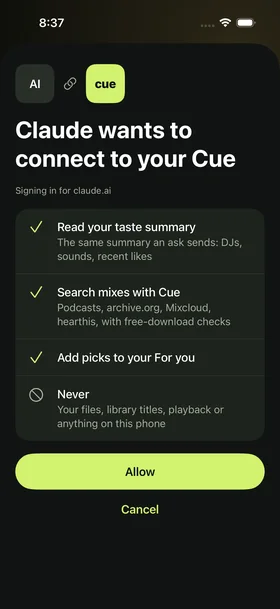
- Cue shows exactly what Claude may do. Tap Allow. There's no password: your Cue app is the account.
- Ask in any chat:
Find me free sunrise sets like what I've been playing in Cue, and put them in my For you.
The picks appear in Cue under From your Claude.
Once you've added it on the web or desktop, the connector also works in Claude's phone app.
ChatGPT
Until Cue is listed in ChatGPT's app directory, adding it needs ChatGPT's Developer mode, which depends on your plan and workspace.
- In ChatGPT: Settings › Security and login, and turn on Developer mode.
- Add a new app with the + button and enter the address above as its MCP server URL.
- Approve in Cue, the same way as for Claude, then ask for sets in a chat.
Use a coding agent
Use Claude Code, Codex, Cursor or a similar agent? Paste this in and it adds Cue for you. You approve the sign-in in the Cue app.
Set up Cue's connector for me in this coding agent.

Add a remote MCP server named "cue" at https://api.decosa.ai/cue/mcp to my own MCP config (not a shared project file). It's streamable HTTP and signs in with OAuth, so it needs no API key or header. Then start the OAuth sign-in and tell me when Cue's consent page opens, so I can approve it in the Cue app on my phone. Don't approve anything yourself.

Exact forms, if you are one of these:
- Claude Code: claude mcp add --transport http --scope user cue https://api.decosa.ai/cue/mcp. The sign-in needs my terminal, so then tell me to type /mcp and pick cue (or run claude mcp login cue).
- Codex CLI: codex mcp add cue --url https://api.decosa.ai/cue/mcp. It starts the sign-in and prints a link; if it doesn't, run codex mcp login cue.
- Cursor: add "cue": { "url": "https://api.decosa.ai/cue/mcp" } under "mcpServers" in ~/.cursor/mcp.json, then tell me to connect it in Cursor's MCP settings.

When it's connected, list Cue's tools to confirm.
Or do it yourself
Claude Code: in a terminal, then type /mcp in Claude Code, pick cue, and approve in Cue.
claude mcp add --transport http --scope user cue https://api.decosa.ai/cue/mcpCodex CLI: in a terminal. It opens the sign-in itself; approve in Cue.
codex mcp add cue --url https://api.decosa.ai/cue/mcpOr in ~/.codex/config.toml, then run codex mcp login cue:
[mcp_servers.cue]
url = "https://api.decosa.ai/cue/mcp"Cursor: in ~/.cursor/mcp.json, then connect Cue in Cursor's MCP settings and approve in Cue.
{
  "mcpServers": {
    "cue": { "url": "https://api.decosa.ai/cue/mcp" }
  }
}
What your AI gets, and what it never gets
- Your taste summaryIf Cue shares it: the same short summary a For you ask sends: DJs and sounds you play, recent liked songs, what you asked for less of. You can see it in Cue under Your taste.
- Mix searchCue's search of podcasts, archive.org, Mixcloud and hearthis.at, with its free-download checks. Your AI gets mix ids and facts, never raw file links.
- Add to For youYour AI can put picks, with a reason, into For you. Cue checks every pick again before offering a download.
- NeverYour audio, your files, your library titles, what you play, or your Claude or ChatGPT account. Cue never sees your password or your conversation, only the tool calls your AI makes.
Why it's free
Your own plan does the thinking, so a connected AI costs us only the searches. There's a fair-use limit on searches per day.
Disconnecting
In Cue, Settings › Connected apps lists Claude and ChatGPT with a Disconnect button, which revokes their access at once. You can also remove the connector in Claude or ChatGPT.
Other ways
Power users can point Cue at their own Mac or server that speaks Cue's open agent protocol. My API key is planned, not in this version.